Which AI Is Best for Beginners in 2026? A No-Nonsense Guide

The Paradox of AI in 2026: More Tools Than Ever, But Harder to Start
There are over 18,000 AI tools listed on Product Hunt alone. Every week, another 50 launch. Every YouTube video screams about “the only AI tool you need.” Every newsletter promises “10x productivity with this one trick.”
It is exhausting.
Here is what nobody tells you: most AI tools in 2026 are not built for beginners. They are built for power users who already know what “temperature,” “token limits,” and “RAG pipelines” mean. They assume you understand the difference between GPT, Claude, Gemini, and Llama. They throw you into a dashboard with 47 settings and expect you to figure it out.
You are not a power user. You just want to know which AI tool you should actually use.
This guide answers that question. No list of 20 tools. No jargon. No “it depends.” Just five specific recommendations based on what you actually want to do — and every single one has a genuinely useful free tier.
Browse more beginner-friendly AI guides and reviews.
TL;DR: Pick Your Tool in 10 Seconds
| You Want To… | Use This | Free Tier | Why It Wins for Beginners |
|---|---|---|---|
| Chat, write, learn anything | ChatGPT | Generous free tier | Most intuitive interface. Just talk to it. |
| Design graphics, logos, social posts | Microsoft Designer | Unlimited (5,000+ templates) | No design skills needed. DALL-E 3 built in. |
| Create short-form videos | CapCut | Unlimited editing, 1080p | Generate + edit in one tool. No watermark. |
| Research with real sources | Perplexity AI | Limited daily searches | Every answer cites its sources. No hallucinations. |
| One tool for text, images, and files | Google Gemini | 100 image gens/day | Handles text, images, PDFs, and YouTube in one window. |
1. ChatGPT — The Best Starting Point for Everything
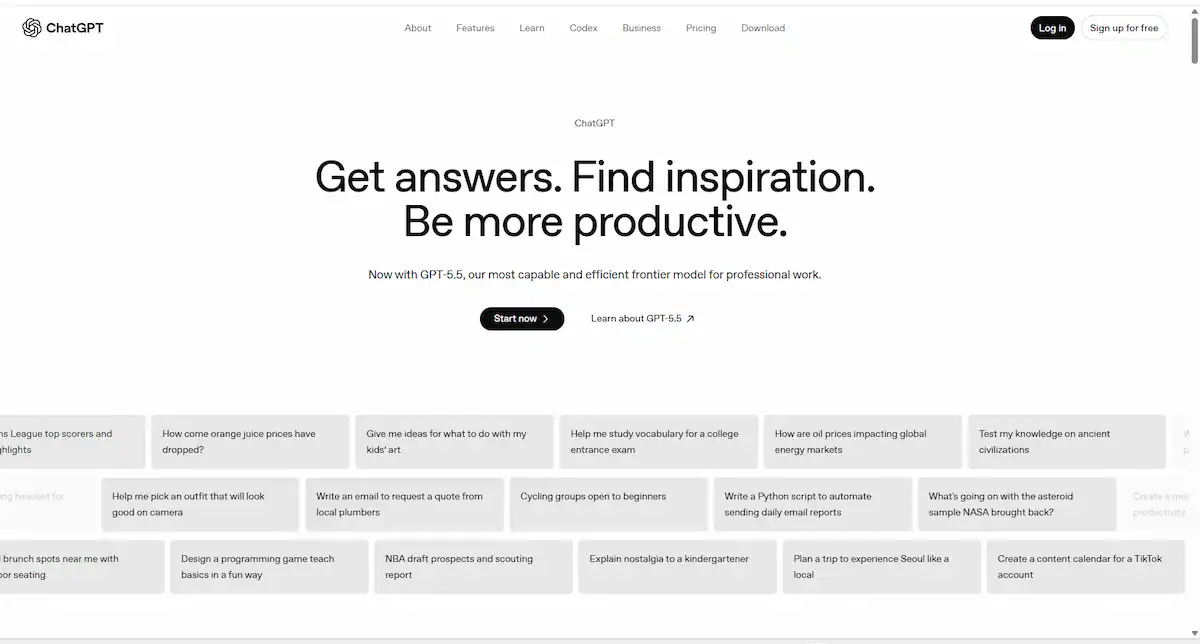
If you only try one AI tool today, make it ChatGPT. Not because it is the most powerful (though it is close). Not because it has the most features (others have more). But because it is the easiest AI tool on the planet to use.
Type a sentence. Get a response. That is the entire learning curve.
OpenAI designed ChatGPT specifically to feel like texting a friend. You do not need to know what a “prompt” is. You do not need to learn any special syntax. You just… talk. Ask it to explain quantum physics like you are five. Ask it to draft an email to your boss. Ask it to brainstorm dinner recipes with the ingredients in your fridge. It handles all of it.
In 2026, the free tier includes access to GPT-4o — OpenAI’s latest model that can see images, understand context across long conversations, and generate responses in natural, conversational English. This is not a stripped-down demo version. This is the real thing, with reasonable usage limits that most casual users will never hit.
What you get for free:
- Access to GPT-4o with generous daily message limits.
- Image understanding — upload a photo and ask questions about it.
- File uploads — drop in a PDF or spreadsheet and ask ChatGPT to summarize it.
- Web browsing — ChatGPT can search the internet for current information (enable it with one click).
- Voice conversations on the mobile app — speak your question and hear the answer out loud.
- Memory across conversations — ChatGPT remembers things you tell it (you can turn this off).
Where it struggles: Free users may hit rate limits during peak hours (typically weekday afternoons US time). Advanced features like DALL-E image generation and data analysis require the Plus plan ($20/month). ChatGPT’s knowledge cutoff means it cannot give you breaking news unless you enable web browsing — and the browsing feature on the free tier is slower than on Plus.
Best for: First-time AI users who want one tool that does a bit of everything. Writing emails, learning new topics, brainstorming ideas, getting quick explanations, translating text, and having a conversational assistant available 24/7.
Start here: Go to chat.openai.com, create a free account, and type “Explain to me what AI can actually do for a beginner in 2026.” Read the response. Then ask follow-up questions. That is how easy it is.
2. Microsoft Designer — Graphic Design, No Experience Required
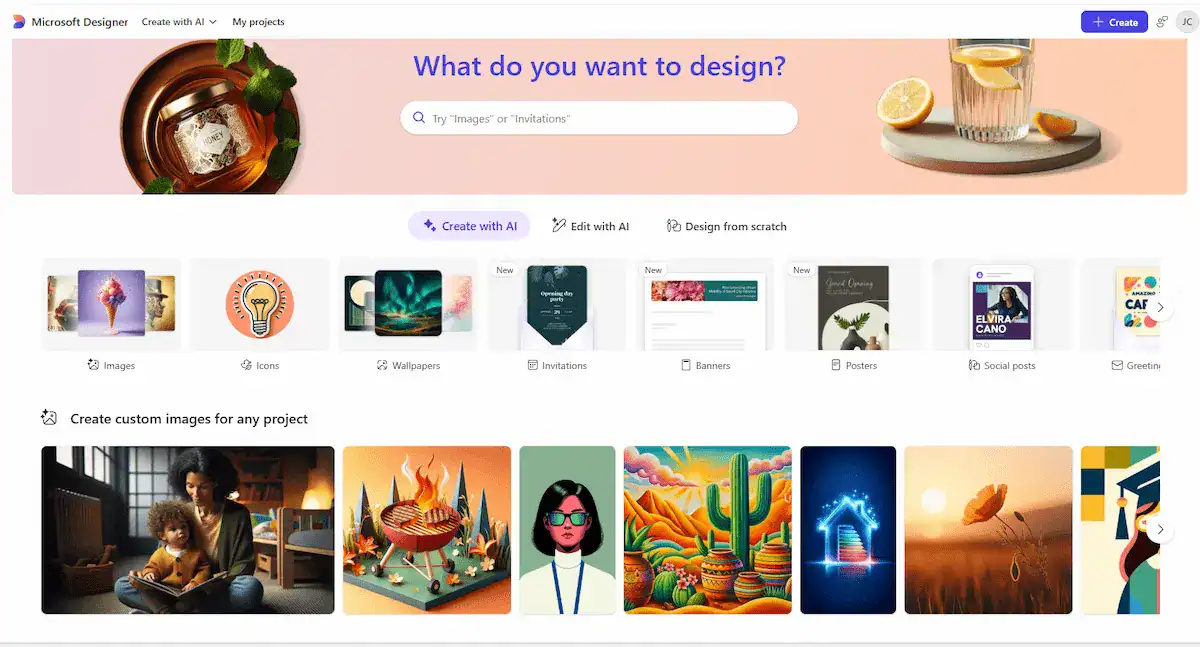
Most beginners think AI design tools require learning Photoshop first. Microsoft Designer proves otherwise. It is the closest thing to “click a button, get a professional design” that exists in 2026 — and it is completely free with a Microsoft account.
Here is why this matters: you need graphics constantly. Thumbnails for YouTube. Cover images for blog posts. Instagram stories. Presentation slides. Event flyers. Logo mockups. If you are a beginner, you have two choices — pay a designer $50 per graphic, or learn Canva/Photoshop over several weekends. Microsoft Designer gives you a third option: describe what you want and get a polished design in seconds.
We did a full review of Microsoft Designer — it genuinely impressed us. The template library alone (5,000+ templates, all free) would justify using it. Layer DALL-E 3 image generation on top, AI-powered background removal, and one-click brand kit application, and you have a tool that replaces subscription services costing $15-30/month.
What you get for free:
- 5,000+ professionally designed templates — Instagram posts, presentations, flyers, logos, and more.
- DALL-E 3 AI image generation built directly into the editor.
- AI background removal — upload any photo, click one button, background gone.
- Brand kit — set your colors and fonts once, apply them everywhere with one click.
- Generative expand — AI fills in the edges of your images to fit any aspect ratio.
- Drag-and-drop editor with zero learning curve.
- No credit card required. Just a free Microsoft account.
Where it struggles: DALL-E 3 image generation has daily limits on the free tier — typically around 15-20 generations before it throttles. The template library, while large, leans toward business and social media use cases — if you need highly artistic or abstract designs, you will hit the edges of what templates can do. Advanced AI features like Generative Erase (removing objects from photos) are rolling out slowly and may not be available in all regions yet.
Best for: Bloggers, content creators, small business owners, and students who need professional-looking graphics without learning design software. Social media posts, YouTube thumbnails, presentation slides, event flyers, product mockups, and simple logos.
Start here: Go to designer.microsoft.com, sign in with any Microsoft account (Outlook, Hotmail, or create one free), and type “Instagram post for a coffee shop grand opening” in the AI prompt box. You will have a publishable design in under 60 seconds.
3. CapCut — From Zero to Published Video in 30 Minutes
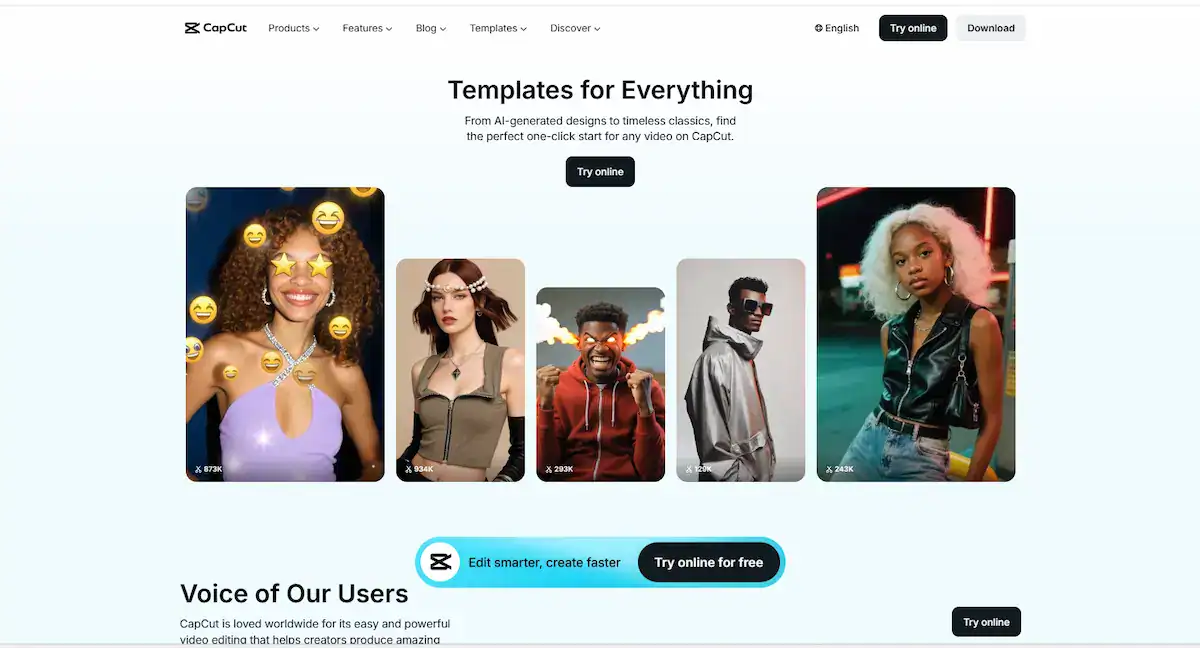
Video is the most intimidating format for beginners. Cameras, lighting, scripting, editing — it feels like you need a film degree. CapCut flips that equation. It is the only tool that combines AI video generation, editing, captions, and export in one free package — and it exports at 1080p with no watermark.
In 2026, CapCut added AI video generation powered by Seedance 2.0 Pro. Type a text description of the video you want, and CapCut generates it. But unlike pure AI generators (which give you a raw clip and say “good luck”), CapCut also gives you a full video editor. Trim. Split. Add music. Add transitions. Add AI auto-captions that are shockingly accurate. Export. Post. All in the same tool.
This is what makes CapCut uniquely beginner-friendly: you do not need a separate AI generator and a separate editor. Generate, edit, caption, and publish — one workflow, one tool, zero dollars.
We covered CapCut in detail in our roundup of the best free AI video tools. It earned its spot as the best all-in-one choice for short-form creators.
What you get for free:
- AI video generation from text prompts (Seedance 2.0 Pro model).
- Full video editor — trim, split, merge, speed control, transitions, filters, color grading.
- AI auto-captions with best-in-class accuracy — generates subtitles in dozens of languages automatically.
- AI text-to-speech with natural-sounding voices.
- Built-in stock footage library, music library, and sound effects.
- 1080p export with no visible watermark — publish-ready, no upgrade required.
- Works on web, desktop (Windows/Mac), and mobile with cloud sync.
Where it struggles: AI video generation is limited in the US — generating videos from real human faces is disabled, and unauthorized IP content is blocked. All AI-generated outputs carry an invisible digital watermark (not visible to viewers, but detectable by platforms). Advanced features like voice cloning and long-form AI video generation require a Pro subscription ($7.99/month). ByteDance ownership raises privacy questions for some users — read their data policy before uploading sensitive content.
Best for: TikTok and Instagram Reels creators, YouTubers starting out, anyone who wants to create short-form video content without buying a camera or learning Premiere Pro. Also excellent for adding AI captions to existing videos — the caption accuracy outperforms most paid alternatives.
Start here: Go to capcut.com, create a free account, and click “AI Video Generator.” Type a short description of the video you want — something like “a montage of a cozy morning routine with coffee, sunlight through windows, and a cat stretching.” CapCut will generate a clip. Then drag it into the editor, add auto-captions, pick a background song from the library, and export. Published video in under 30 minutes.
4. Perplexity AI — Research Without the Rabbit Holes
Here is a problem every beginner hits: you ask ChatGPT a question, it gives you a confident answer, and you have no idea if any of it is true. ChatGPT does not cite sources by default. Perplexity AI fixes this. Every answer comes with numbered, clickable citations linking to the original web pages it used. You can verify everything.
Think of Perplexity as Google Search rebuilt for the AI era. You ask a question in plain English. Perplexity reads multiple web pages, synthesizes an answer, and shows you exactly where each fact came from. It is like having a research assistant who summarizes five articles for you in 10 seconds — and hands you the originals in case you want to dig deeper.
For beginners, this is transformative. Writing a school paper? Perplexity finds and cites sources. Comparing products before buying? Perplexity pulls specs and prices from multiple sites. Fact-checking something you read on social media? Perplexity tells you which sources confirm or contradict it. You do not need to open 15 browser tabs and cross-reference manually anymore.
Perplexity also supports file uploads — drop in a PDF, an image, or a text file, and ask questions about it. Need to understand a dense research paper? Upload it and say “summarize this in plain English.” The free tier limits file uploads, but the core search functionality is fully usable without paying.
What you get for free:
- AI-powered search with source citations on every answer.
- Standard model access — fast, accurate responses for general queries.
- Conversation history — revisit and continue previous searches.
- Limited file uploads — summarize PDFs and documents.
- Web, iOS, and Android access with sync.
- No credit card required. Just sign up and search.
Where it struggles: Free tier has daily search limits — you will hit them if you use Perplexity for everything. Advanced models (GPT-4, Claude, Gemini) are locked behind the Pro plan ($20/month). The free tier’s “standard model” occasionally misses nuance in complex academic or technical questions. Perplexity Pro search mode (which does multi-step research) is not available on the free plan.
Best for: Students writing papers, anyone doing product research before a purchase, fact-checking, learning about unfamiliar topics, journalists and writers who need sourced information, and anyone who has been burned by AI hallucinations and wants verifiable answers.
Start here: Go to perplexity.ai, create a free account, and type “What are the best AI tools for beginners in 2026?” Read the answer. Then click on one of the source links at the bottom. This is the difference between AI that says “trust me” and AI that says “here is where I got this from.”
5. Google Gemini — One Tool for Text, Images, PDFs, and YouTube
Most AI tools are good at one thing. ChatGPT handles text. DALL-E handles images. Perplexity handles search. Google Gemini is different — it is genuinely multimodal, meaning it can process text, images, PDFs, code, audio, and even YouTube videos all within the same conversation. No switching tabs. No copying and pasting between tools.
This makes Gemini uniquely valuable for beginners who do not want to juggle five different AI subscriptions. Need to summarize a 30-page PDF? Drop it into Gemini. Want to generate an image for a blog post? Ask Gemini. Found a YouTube tutorial but do not have 20 minutes to watch it? Paste the link and ask Gemini to give you the key points. Need to translate a document and then write an email about it? One conversation, one tool.
Gemini’s free tier in 2026 is remarkably generous — 100 image generations per day using the Nano Banana 2 model, which produces 4K-resolution images with natural-looking human faces and accurate real-world landmark knowledge. For text tasks, Gemini uses Google’s latest model, which competes directly with GPT-4o on reasoning and writing quality.
If you already use Google products (Gmail, Drive, Docs, YouTube), Gemini integrates with all of them. Your Google One storage is accessible. Your YouTube history informs recommendations. It feels less like a separate tool and more like an AI layer on top of the Google ecosystem you already use.
What you get for free:
- 100 AI image generations per day (Nano Banana 2, 4K resolution).
- Multimodal input — upload text, images, PDFs, code files, and paste YouTube links.
- Google ecosystem integration — pull from Drive, summarize YouTube videos, reference Gmail (with permission).
- Web search with Google’s search index — arguably the most comprehensive source base of any AI tool.
- Extensions for Google Flights, Hotels, Maps, and YouTube.
- Available on web, Android, and iOS with voice input.
- No credit card required — sign in with any Google account.
Where it struggles: Gemini’s writing style can feel more corporate and less conversational than ChatGPT or Claude — it tends toward safe, neutral language that is functional but not engaging. Image generation has content restrictions that are stricter than some competitors (no photorealistic depictions of public figures, for example). The free tier imposes rate limits during peak usage, particularly on image generation. Google’s integration depth means you are sharing data across your Google account — this is convenient but may concern privacy-focused users.
Best for: Beginners who already use Google products, anyone who wants one tool that handles text and images in one place, students who need to summarize PDFs and YouTube videos, and creators who need high-volume image generation without paying (100/day is the most generous free limit among major AI image generators).
Start here: Go to gemini.google.com, sign in with your Google account, and paste a YouTube link with the prompt “Summarize the key points of this video in 5 bullet points.” Then open a file from your Google Drive and ask Gemini to analyze it. You will understand within 5 minutes why multimodal matters.
What a Beginner’s AI Workflow Actually Looks Like
Knowing which tools exist is step one. Knowing how to use them together is where the real productivity happens. Here is a realistic 30-minute workflow that costs $0 and covers five common beginner tasks:
- Research a topic (5 minutes): Open Perplexity. Search “best practices for writing a blog post introduction.” Read the sourced summary. Click into 2-3 source articles that look interesting. You now have research with citations — no tab-hoarding required.
- Draft your content (10 minutes): Open ChatGPT. Type “I am writing a blog post about [topic]. Here is the research I gathered: [paste Perplexity summary]. Help me write a conversational introduction in 3-4 paragraphs. Make it sound like I am explaining this to a friend.” ChatGPT gives you a draft. Edit it. Make it yours. AI writes the first draft; you add the human touch.
- Create the cover image (5 minutes): Open Microsoft Designer. Type “Blog post cover image for an article called [your title] — modern, minimal, blue and white color scheme.” Designer generates 4 options using DALL-E 3. Pick one. Add your title text using a template. Download. Done.
- Turn it into a short video (8 minutes): Open CapCut. Paste your blog post’s introduction into the AI video generator. CapCut converts text to video clips with auto-captions. Add background music from the library. Trim to 30-60 seconds. Export at 1080p, no watermark. Post to TikTok, Reels, or Shorts.
- Review and fact-check (2 minutes): Back to Perplexity. Search any specific claims from your draft that need verification. “Is it true that YouTube Shorts hit 70 billion daily views in 2025?” Perplexity confirms or corrects. Adjust your draft accordingly.
Total time: 30 minutes. Total cost: $0. Tools used: 4. Skills needed: typing.
This is what “AI for beginners” actually looks like in 2026. Not a single magical tool that does everything. A simple stack of free tools that each do one thing well, connected by your own workflow.
When Should You Upgrade to Paid Plans?
Every tool on this list has a free tier. You can use all five indefinitely without spending a cent. But there comes a point where paying $7-20/month unlocks enough value to be worth it. Here is when to upgrade — and when not to.
| Tool | Upgrade When… | Stay Free If… | Paid Plan |
|---|---|---|---|
| ChatGPT | You hit message limits 3+ times per week. You need DALL-E image generation or data analysis. | You use ChatGPT for casual questions, light writing, or learning. Free tier handles this fine. | $20/mo |
| Microsoft Designer | You need more than ~15-20 DALL-E image generations per day. You want advanced AI editing features. | You create a few graphics per week. The free template library + limited DALL-E is enough. | Included with Microsoft 365 |
| CapCut | You need voice cloning, long-form video generation, or advanced AI effects. You publish daily. | You make short-form content. Free editing + captions + 1080p export covers 90% of use cases. | $7.99/mo |
| Perplexity | You research daily and hit search limits. You need Pro Search for multi-step research queries. | You research occasionally. Free searches with citations are strong enough for casual use. | $20/mo |
| Gemini | You need more than 100 image generations/day. You want priority access during peak hours. | 100 free image generations per day is already generous. Most beginners will not exceed this. | $19.99/mo |
The honest rule of thumb: use the free tiers for at least two weeks before paying for anything. If you are not hitting the limits, you do not need to upgrade. Most beginners discover that the free tiers cover 80-90% of what they actually do. Pay only when a specific limitation is actively slowing you down — not because a pricing page made you feel like you were missing out.
Frequently Asked Questions
Which AI tool should I start with if I only have time for one?
ChatGPT. It is the most versatile, the easiest to use, and the free tier is genuinely useful. You can write, learn, brainstorm, and get quick answers all in one place. Start here. Branch out to the other tools on this list as you identify specific needs (design, video, research).
Are these AI tools really free, or are there hidden costs?
All five tools on this list have genuinely free tiers with no credit card required. ChatGPT, Gemini, Perplexity, and CapCut require only an email sign-up. Microsoft Designer requires a Microsoft account (also free). The free tiers have usage limits — daily message caps, generation limits, feature restrictions — but none of them will surprise you with a bill. You only pay if you choose to upgrade.
Do I need technical skills to use AI tools in 2026?
No. Every tool on this list is designed for non-technical users. ChatGPT and Perplexity work like texting apps. Microsoft Designer works like a simplified Canva. CapCut works like a phone video editor. Gemini works like Google Search with extra abilities. If you can type and click, you can use all five tools.
What is the difference between ChatGPT, Gemini, and Perplexity? They all seem similar.
They look similar but serve different purposes. ChatGPT is a conversational assistant — best for writing, brainstorming, and back-and-forth discussion. Gemini is a multimodal tool — best when you need to work with images, PDFs, YouTube videos, and text in one place. Perplexity is a research tool — best when you need sourced, verifiable answers and do not want AI to make things up. Use ChatGPT for creation, Gemini for mixed-media work, and Perplexity for research.
Can I use these tools for my job or business?
Yes, with caveats. All five tools allow personal and professional use on their free tiers. However, read each tool’s Terms of Service if you plan to use AI-generated content commercially — especially images. Microsoft Designer and Gemini’s image generators have the cleanest licensing for commercial use. CapCut’s free tier allows commercial use of edited videos. Perplexity’s research is fair use (you are reading public web pages). ChatGPT’s output can be used commercially — OpenAI explicitly grants this right even on the free tier.
How do I get better at using these tools?
Practice daily for 10-15 minutes. The learning curve is not technical — it is about learning how to ask clear questions. The more specific your request, the better the output. Instead of “write a blog post about AI,” try “write a 300-word blog post introduction about why AI image generators are better than stock photos, written in a conversational tone for an audience of beginner content creators.” Instead of “make a logo,” try “design a minimalist logo for a coffee shop called ‘Brew & Bloom’ — warm earth tones, clean typography, circular shape.” Specificity is the skill. You build it by using the tools.
Start With One Tool Today
The AI tool landscape in 2026 is noisy, confusing, and full of people trying to sell you things. Ignore all of that. Pick one tool from this list — whichever matches what you actually want to do — and use it for 10 minutes today.
ChatGPT if you want to write and learn. Microsoft Designer if you need graphics. CapCut if you want to make videos. Perplexity if you need research. Gemini if you want one tool that does a bit of everything.
You do not need five subscriptions. You do not need to learn any technical skills. You do not need to read another “top 20 AI tools” list.
You just need to start.
Once you are comfortable with the basics, explore our deeper guides on specific AI categories:
- 5 Best Free AI Video Tools in 2026 — Evaluated with real output comparisons.
- 10 Best Free AI Productivity Tools in 2026 — Tools we evaluated and still recommend.
- Microsoft Designer Full Review — Deep dive into the best free design tool for beginners.
- AI Weekly Roundup: 7 AI News You Can’t Miss — Stay current without the noise.