How to Write AI Image Prompts That Actually Work (2026)

Your AI Image Tool Is Fine. Your Prompt Is the Problem.
Yesterday, we covered five free AI image generators that actually work. You now know which tool to pick for photorealism, which for anime, and which for text-heavy designs.
But here is the thing. Even the best AI image tool produces garbage if you feed it a bad prompt. Type “a cat” and you get a generic cat. Type a detailed prompt with lighting, style, composition, and mood — and you get something you can actually use.
This guide teaches you exactly how to write prompts for AI image generators. These prompts were evaluated across all five free tools from yesterday’s article. Each section includes copy-paste templates you can use right now. Browse all our AI guides and tutorials.
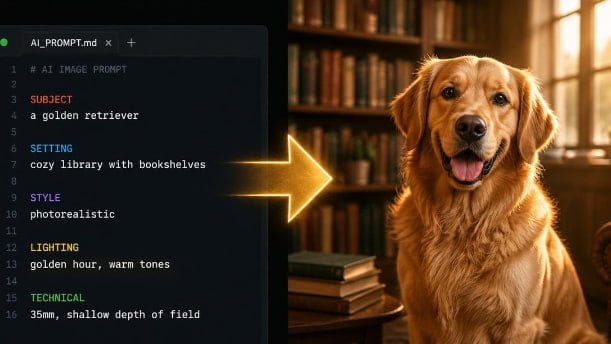
The 5-Ingredient Prompt Formula
Great AI image prompts all follow the same structure. Memorize these five ingredients and you will never write a bad prompt again:
- Subject. What or who is the image about? Be specific.
- Setting and context. Where is this happening? What is in the background?
- Style. Photorealistic? Anime? Oil painting? 3D render? Flat illustration?
- Lighting and mood. Golden hour? Dramatic shadows? Soft morning light? Moody and dark?
- Technical details. Camera angle, lens type, composition, resolution.
Bad prompt: “A coffee shop.”
Good prompt: “Interior of a cozy coffee shop on a rainy evening. Warm amber light from vintage Edison bulbs. Barista steaming milk behind a copper espresso machine. Foggy windows with raindrops. Wooden tables with half-finished books. Photorealistic style. Shot on 35mm film. Shallow depth of field. Warm browns and cream tones.”
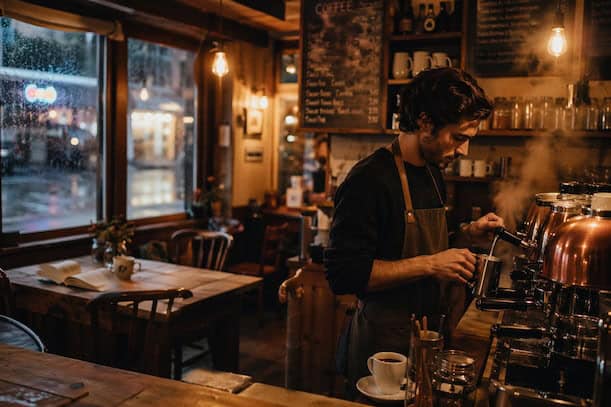
The difference? The first prompt gives the AI nothing to work with. The second gives it everything.
How to Write Prompts for Photorealistic Images
If you want your AI image to look like a real photograph, you need to think like a photographer. Use camera and lighting language.
Photorealism Keyword Cheat Sheet
| Category | Keywords to Use |
|---|---|
| Camera | Sony Alpha 7 III, Nikon D850, Hasselblad medium format, shot on 35mm film |
| Lens & Focus | 50mm close-up, wide angle lens, shallow depth of field, bokeh background |
| Lighting | golden hour, soft morning light, dramatic chiaroscuro, Rembrandt lighting, neon glow |
| Quality | 8K resolution, ultra-detailed, National Geographic quality, commercial photography |
| Style Tags | cinematic, editorial photography, lifestyle photo, film grain, natural lighting |
Real Example: Product Photography
“Product photography of a minimalist ceramic coffee mug on a textured concrete surface. Steam rising gently from the dark coffee inside. Morning sunlight streaming through a nearby window casting soft shadows. Shallow depth of field blurring a warm-toned background. Shot on Hasselblad medium format. Commercial advertising quality. Warm terracotta, cream, and dark brown palette. Square format.”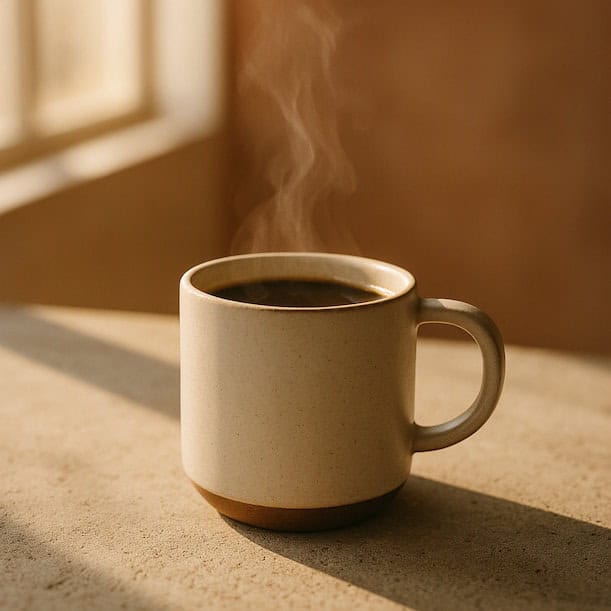
Best tools for this: Google ImageFX and Microsoft Designer (DALL-E 3).
How to Write Prompts for Anime and Manga Style
Anime images need completely different keywords than photorealism. Reference specific studios, art styles, and rendering techniques.
Anime Keyword Cheat Sheet
| Category | Keywords to Use |
|---|---|
| Studio Reference | Studio Ghibli aesthetic, Makoto Shinkai visual style, A-1 Pictures quality, Demon Slayer style |
| Rendering | cel-shaded, detailed linework, soft watercolor-like, vibrant saturated colors |
| Composition | dramatic upward camera angle, wide establishing shot, close-up portrait |
| Atmosphere | pastel sky, cherry blossom petals, floating dust particles, warm golden hour backlighting |
| Character | flowing silver hair, violet eyes, ornate battle kimono, glowing energy aura |
Real Example: Anime Character Portrait
“Anime character concept art. A young female warrior with flowing silver hair and violet eyes. She wears an ornate gold-trimmed battle kimono. Cherry blossom petals swirl in the wind around her. Dramatic upward camera angle. Studio Ghibli meets Demon Slayer aesthetic. Soft cel-shaded rendering with detailed linework. Warm golden hour backlighting. Professional animation production art quality.”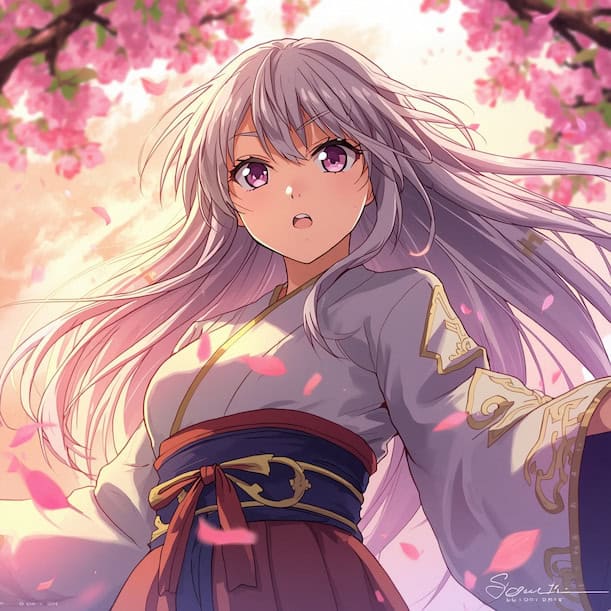
Best tool for this: Leonardo AI. It has dedicated anime models and supports custom model training for your personal style.
How to Write Prompts for Text-in-Image Designs
This is the hardest thing in AI image generation. Most tools turn text into gibberish. The trick is to use a tool that can handle text (Ideogram or DALL-E 3), and be extremely specific about placement and typography.
Text-in-Image Keyword Cheat Sheet
| Category | Keywords to Use |
|---|---|
| Text Placement | headline at the top, title centered, positioned in the upper third, bottom right corner |
| Typography | bold NASA-inspired block typography, clean geometric sans-serif, elegant serif type |
| Design Style | vintage retro poster, modern minimalist, screen print aesthetic, flat vector style |
| Colors | electric blue to deep purple gradient, burnt orange with cream, high contrast black on white |
Real Example: Quote Poster
“Vintage retro poster design. The quote ‘CREATE EVERY DAY’ in bold NASA-inspired block typography prominently at the top. Background image: a painter’s studio desk at sunrise, tubes of paint scattered across a wooden palette, paintbrushes in a mason jar, warm golden light streaming through dusty windows. Color palette: burnt orange, off-white cream, dark midnight navy. Screen print aesthetic with flat color separations.”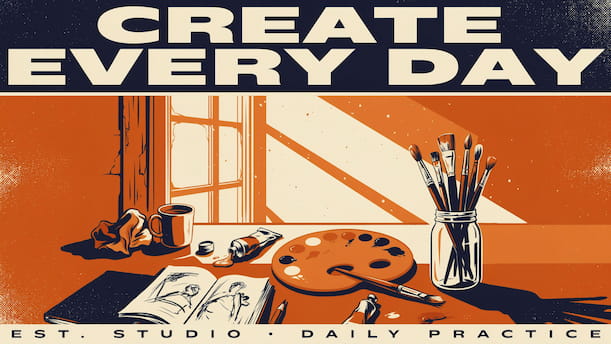
Real Example: Tech Logo
“Modern minimalist tech logo design for an AI startup called NEXUS AI. The name NEXUS in clean geometric sans-serif type, AI in a lighter weight below it. Above the text: an abstract symbol formed by interconnected glowing nodes forming a stylized N shape. Gradient from electric blue to deep purple on the symbol. White background. Professional vector aesthetic.”

Best tools for this: Ideogram (unmatched text rendering) and Microsoft Designer / DALL-E 3 (good text with excellent image quality).
Best Prompt Templates for Each Free Tool
Each tool has its own strengths. Here are optimized prompt templates for all five from last article:
Google ImageFX — Photorealism Template
“[Subject], photorealistic. [Specific lighting condition]. [Camera and lens details]. [Background details]. Natural skin textures and fabric details. Atmospheric [mood] lighting. High resolution.”
“A woman reading a book in a sunlit window seat, photorealistic. Soft morning light filtering through sheer curtains. 50mm portrait lens, shallow depth of field. Books stacked on a wooden side table, steaming cup of tea nearby. Natural skin textures and fabric details. Atmospheric warm and peaceful lighting. High resolution.”
Leonardo AI — Anime and Game Art Template
“[Character type], [specific visual features]. [Clothing and accessories]. [Pose and setting]. [Lighting and atmosphere]. [Studio/style reference]. [Rendering quality]. Professional [type] art quality.”
“Fantasy RPG character concept art. Elven ranger with braided dark hair and green cloak. Leather armor with gold embroidery. Drawing a bow in a misty forest clearing at dawn. Dappled sunlight filtering through ancient trees. Dark fantasy aesthetic with painterly rendering. Ultra detailed. Professional character design art quality.”
Ideogram — Text + Image Template
“[Design type] for [purpose]. The text ‘[WORDS]’ in [typography style] at the [position]. Image shows: [scene description]. Color palette: [colors]. [Aesthetic style].”
“Book cover design for a fantasy novel. The title ‘THE LAST GATE’ in elegant serif gold typography centered at the top. Image shows: a massive ancient stone gate in a mountain pass, glowing runes along the arch, a lone figure with a staff approaching from the bottom, misty atmosphere. Color palette: deep midnight blue, gold, and pale silver. Cinematic fantasy aesthetic.”
Microsoft Designer (DALL-E 3) — Social Media Template
“[Format and purpose]. Show: [scene description]. [Lighting details]. [Style and color palette]. [Technical specs: resolution, aspect ratio]. [Any text placement notes].”
“Instagram square image for a travel blog. Show: an aerial view of Santorini’s blue-domed churches against the Aegean Sea, whitewashed buildings cascading down the cliffside, bougainvillea flowers in the foreground. Late afternoon golden light. Lifestyle photography aesthetic. Blue, white, and warm terracotta palette. Square format 1080×1080.”
Playground AI — High-Volume Experiment Template
“[Subject and action]. [Setting and atmosphere]. [Art style reference]. [Color mood]. High detail.”
“Cyberpunk street market at night. Neon holographic signs in Chinese and Japanese characters reflecting on wet pavement. Crowd of diverse futuristic characters browsing food stalls. Steam rising from noodle carts. Blade Runner 2049 aesthetic. Rain-soaked atmosphere. Pink and cyan neon color palette. High detail.”
Common Prompt Mistakes (and How to Fix Them)
| Mistake | Fix |
|---|---|
| “Draw a person” — too vague | “Portrait of a middle-aged fisherman in a yellow raincoat, standing on a wooden dock at sunrise, weathered face, grey beard, holding a coffee mug” |
| Using the same prompt for all tools | Each tool interprets keywords differently. Use the templates above for each specific tool |
| Forgetting to specify aspect ratio | Always add “square format,” “widescreen 16:9,” or “portrait 3:4” at the end |
| Accepting the first output | Iterate. Change one keyword at a time. “More dramatic lighting.” “Make the colors warmer.” “Zoom out to show more of the background.” |
| Using abstract concepts without visual anchors | Instead of “freedom,” describe an eagle soaring over a mountain range at sunrise. AI needs visual descriptions, not concepts |
Your Prompt Workflow: From Idea to Final Image
- Start with the template for your tool. Copy the relevant template from the section above.
- Fill in your subject and details. Be specific. More detail = better output.
- Generate 4 variations. Most tools give you multiple options. Pick the best one.
- Iterate once or twice. Adjust one thing at a time. Lighting, angle, color, or style.
- Save the winning prompt. Build your personal prompt library over time.
Remember: you already picked the right tool from yesterday’s guide. Now you have the prompts to make that tool produce exactly what you want. Combine the two, and your AI images will go from generic to genuinely good.
Browse all our AI tool reviews and tutorials as you build your creative skills.
Frequently Asked Questions
How long should my AI image prompt be?
Between 20 and 80 words works best for most tools. Too short and the AI guesses. Too long and it gets confused. Aim for enough detail to describe your subject, style, lighting, and mood — then stop.
Can I use the same prompt across different AI image tools?
Yes, but results will vary. Each tool interprets keywords differently. Google ImageFX is strongest with photographic language. Leonardo AI responds better to art style references and game art terms. Ideogram needs you to put exact text in quotes. Use the tool-specific templates in this guide for best results.
Why does my text always come out garbled in AI images?
Most AI image generators cannot render readable text. They see text as abstract shapes, not words. For text-heavy designs, use Ideogram or DALL-E 3 (through Microsoft Designer). Put the exact text you want in quotes and specify its position and typography style.
What is the best prompt for anime-style images?
Reference a specific studio or style: “Studio Ghibli aesthetic,” “Makoto Shinkai visual style,” “Demon Slayer animation quality.” Add cel-shaded rendering, vibrant colors, and detailed linework. Leonardo AI is the best free tool for anime because it has dedicated anime models.
Do I need to use technical camera terms for photorealistic images?
You do not need to be a photographer, but using a few camera terms dramatically improves results. Even basic terms like “50mm portrait,” “shallow depth of field,” “golden hour lighting,” and “shot on 35mm film” will push the output toward photorealism. The AI understands these terms from its training data.
Have a prompt that produced amazing results? Share it with me — I love discovering new prompt tricks.
Disclosure: Some links in this article may be affiliate links. I only recommend tools and techniques I have researched and evaluated. Read my full disclosure.